Appointments that fit your practice
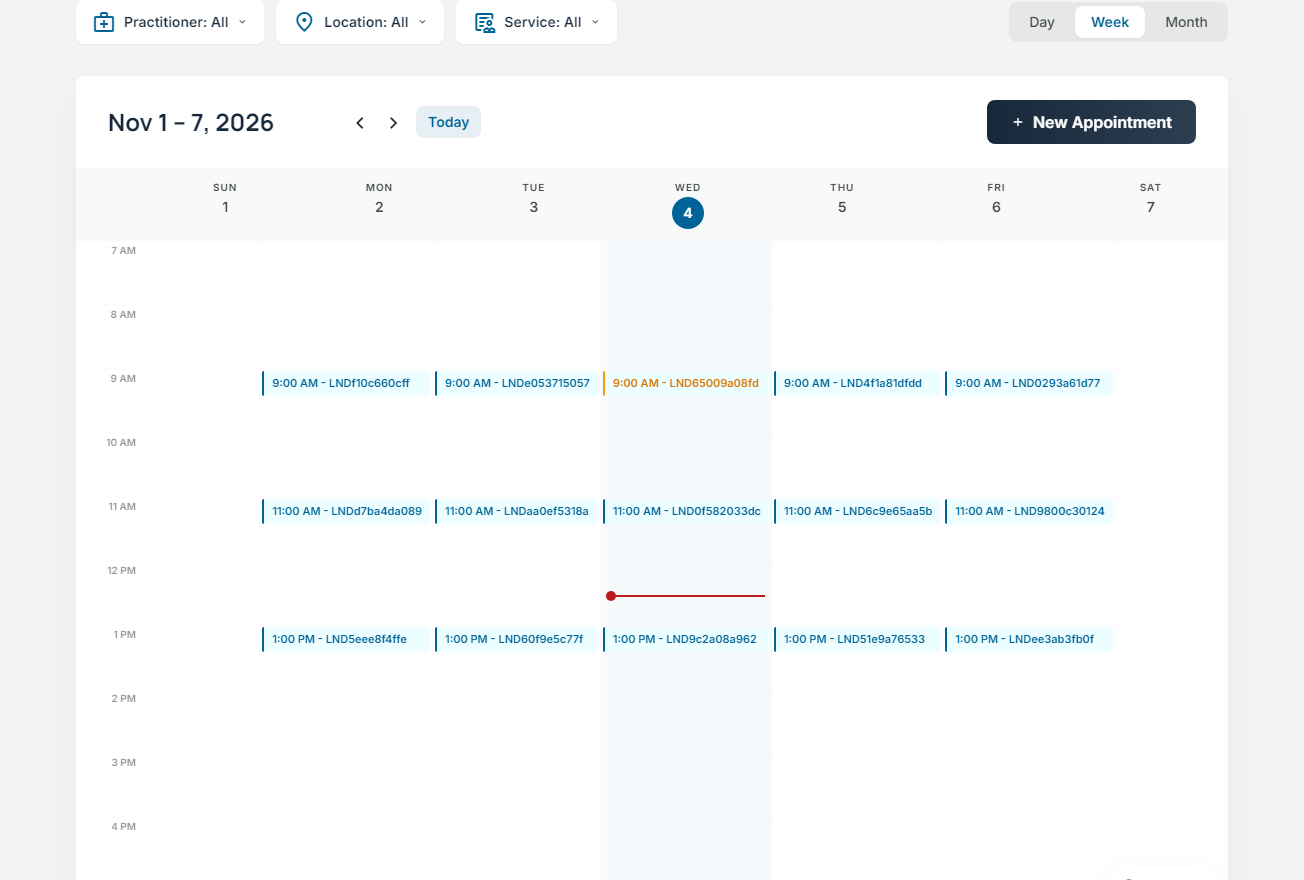
Manage individual, couples, family and group appointments, recurring sessions and appointment-change requests.
Practice management for counseling teams
Scheduling, clinical notes, client forms and practitioner pay — connected in one workspace, from the first appointment to the end of the pay period.
For clinic owners, clinicians and administrative teams.
Built around counselingNotes, assessments and care plans.
One view for your teamAppointments, balances and practitioner pay.
English & KoreanA shared workspace for bilingual teams.
Your practice, connected
Move between clinical care, client communication and practice operations without losing the context of the work.
Coordinate clinicians, rooms and appointments, including individual, couples, family and group sessions.
Explore this areaBuild your note templates, collect assessments and follow care-plan goals over time.
Explore this areaGive clients a place for forms, appointments, messages and shared records.
Explore this areaTrack manual receipts, outstanding balances, practitioner compensation and reports.
Explore this areaFrom preparation to review
See how the team can prepare for a visit, manage the appointment, document care and review the work that follows.
Register clients, invite them to the portal and manage intake forms and consent.
Explore this areaReview availability, book sessions and manage changes and reminders.
Explore this areaWrite notes, review assessment responses and update treatment goals.
Explore this areaRecord receipts, review balances and organize practitioner pay statements.
Explore this areaClinical care
Support the way your counseling team works, with structured records and a clearer view of each stage of care.
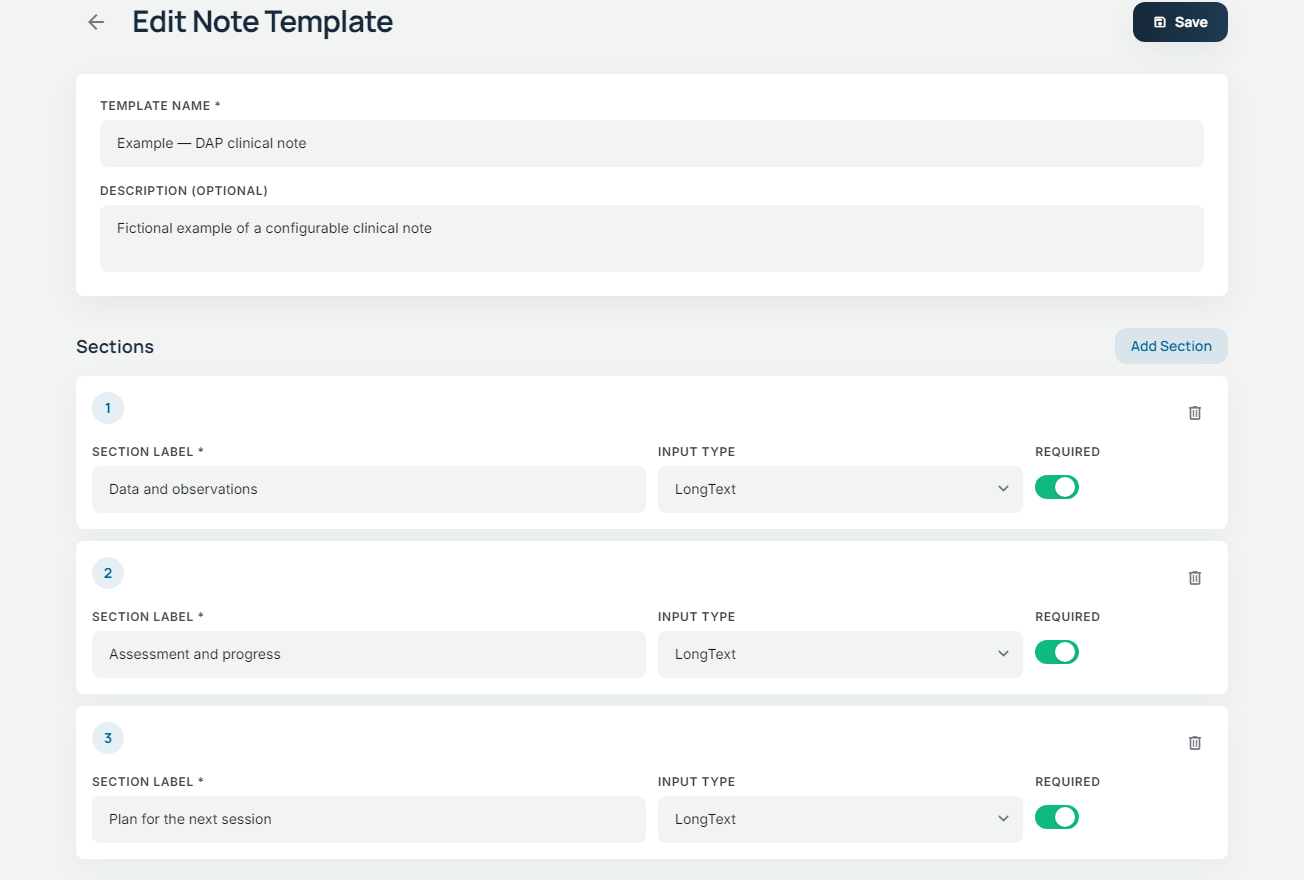
Use SOAP, BIRP or DAP templates, or define your own fields. Signed notes and amendments preserve the record of changes.
Assign assessments, review submitted responses and follow score trends alongside the client’s care.
Organize goals and interventions, review progress and carry the clinical context through to case closure.
Appointments & communication
Manage the details around a visit — the people, the room, the reminder and the next conversation.
Manage individual, couples, family and group appointments, recurring sessions and appointment-change requests.
Set appointment reminders by email or SMS. Email and Korean-number SMS are supported through the configured providers.
Connect practitioner calendars, receive busy-time information and use Google Meet or manual external links for online appointments.
Client portal
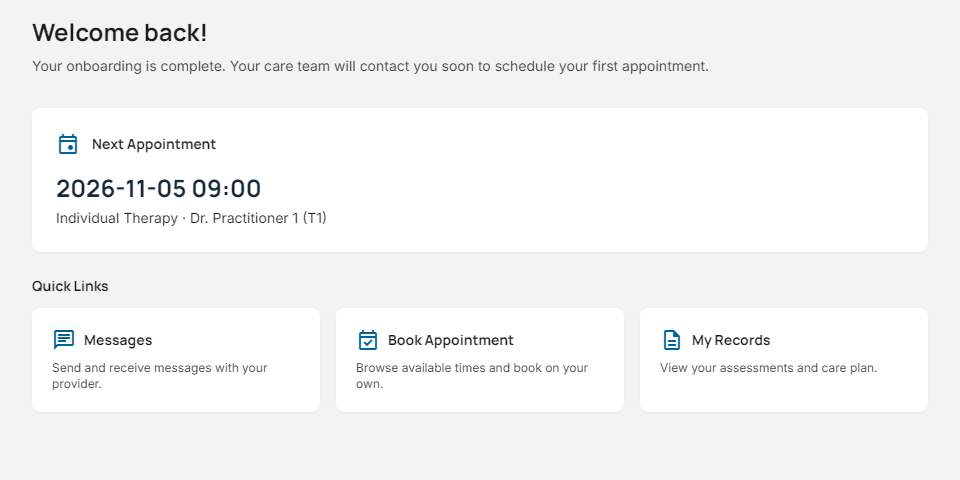
Invited clients can prepare for appointments and stay connected with their clinic in English or Korean.
New public intake applications are reviewed by staff; an application does not automatically confirm an appointment or create a portal account.
Practice operations
Bring receipts, outstanding balances, practitioner compensation and practice reports into the same working routine.
Record manual receipts, check invoice balances and review the amounts still outstanding.
Review compensation by pay period, close statements and record payments while retaining compensation history.
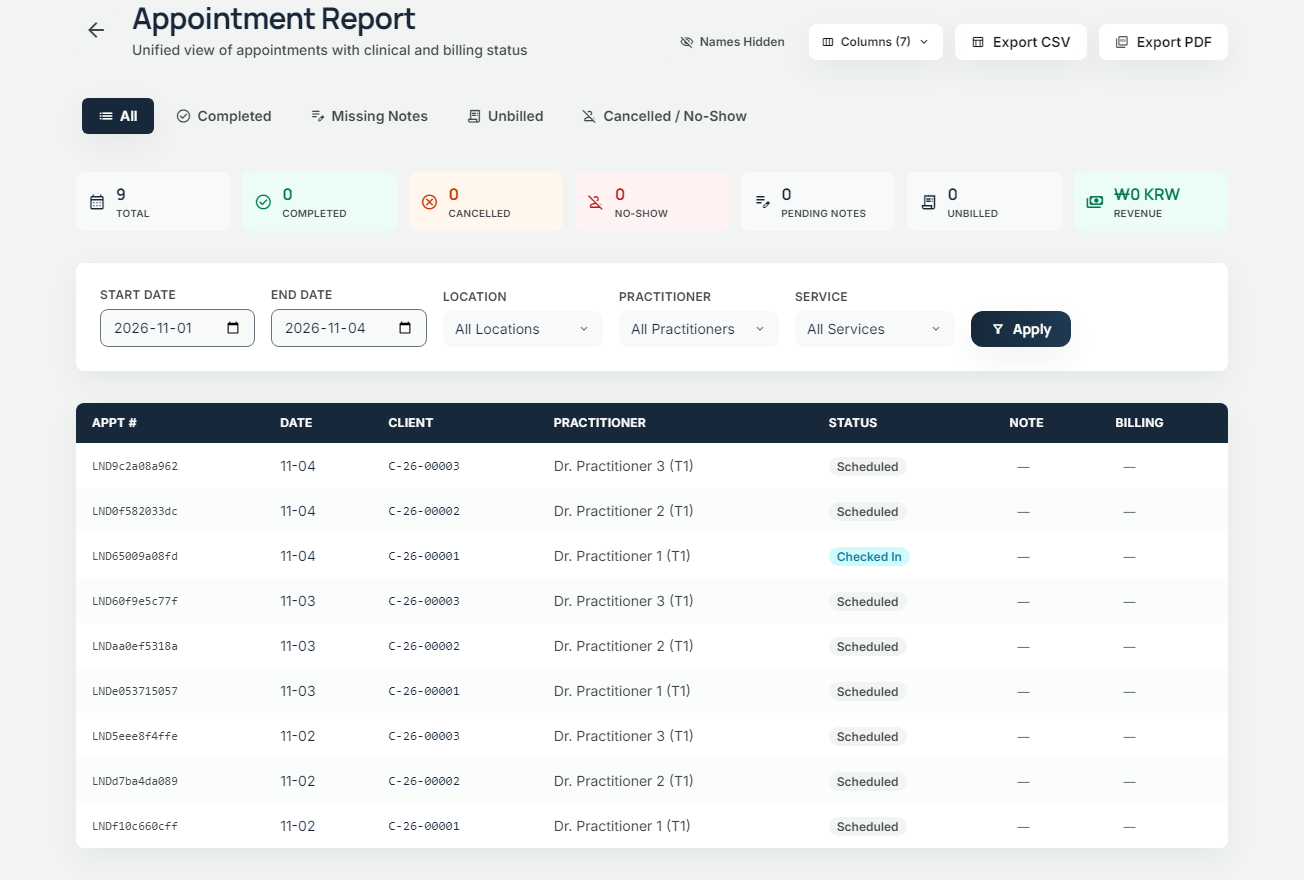
Review appointments, revenue, outstanding invoices, practitioner pay, documentation compliance and audit history.
Receipts are recorded manually and practitioner pay is calculated and recorded. Client online payments, bank transfers and new insurance submissions are outside the current service scope.
Security & trust
Keep clinic information within defined access boundaries and preserve the history of sensitive work.
Control staff capabilities and client access through assigned permissions and care relationships.
Clinic data is scoped to the organization so teams work within their own clinic’s records.
Review recorded audit events, signed-note revisions and document-signing history according to your permissions.
Discuss data handling, retention and external-service arrangements with the platform operator as part of clinic setup.
Find setup and support informationHow to get started
Once your practice account is registered in Zenease, the invited administrator sets up the team’s workspace.
Confirm your practice details, number of practitioners, pricing and agreement with the service operator. The operator registers your practice account in Zenease and invites its administrator.
The invited administrator sets a password and multi-factor authentication to complete account registration.
Configure locations, services, permissions and templates, then invite the team and clients.
Your subscription specifies how many practitioners can use the service. Purchasing access for three practitioners lets you grant access to three practitioner accounts. Pricing follows the purchased capacity and applicable agreement.
Questions, answered
A few practical details about who Zenease is for and how it is used.
Zenease supports mental-health and counseling clinics, including English-speaking teams working in Korea. It brings clinical and administrative work into one workspace.
The service operator registers your practice account in Zenease and invites the first administrator. Staff and clients then join by invitation from the practice.
The workspace supports English and Korean. Use EN or KO in this page’s navigation to explore the introduction in either language.
No. Staff review public intake applications. Existing clients use the portal’s available self-booking options, which follow the clinic’s care and booking rules.
The current service records manual receipts, tracks balances and calculates practitioner compensation and statements. It does not process client online payments or bank transfers.
Available report exports, client record copies and document downloads depend on permissions and the record type. Migration from another system and a complete clinic export require separate scope confirmation.
Help & support
Different questions need different starting points — setting up a clinic, accessing an account or using the client portal.
Review how to get started and confirm the features and terms your practice needs with the service operator.
Getting startedSign in with your invited account. Your clinic administrator can help with invitations and access permissions.
LoginUse the account invited by your clinic. Contact your clinic for appointment, document or care-related questions.
Frequently asked questionsYour next step
Explore the features your team needs and how to get started. If you already have an account, sign in to continue your work.